
When listening is preferred
Often there are two ways to take in information. Firstly, there is reading something on the printed page, which is taking in information with our eyes. Secondly, there is listening to the information. Listening is perhaps one of our preferred ways of receiving information, since human beings are language-oriented animals. For example, we listen to lectures, to sermons, to movies, to podcast, and, importantly, to audiobooks. This is taking in information with our ears. After all, language is meant to be spoken and listened to.
What is an auditory learner?
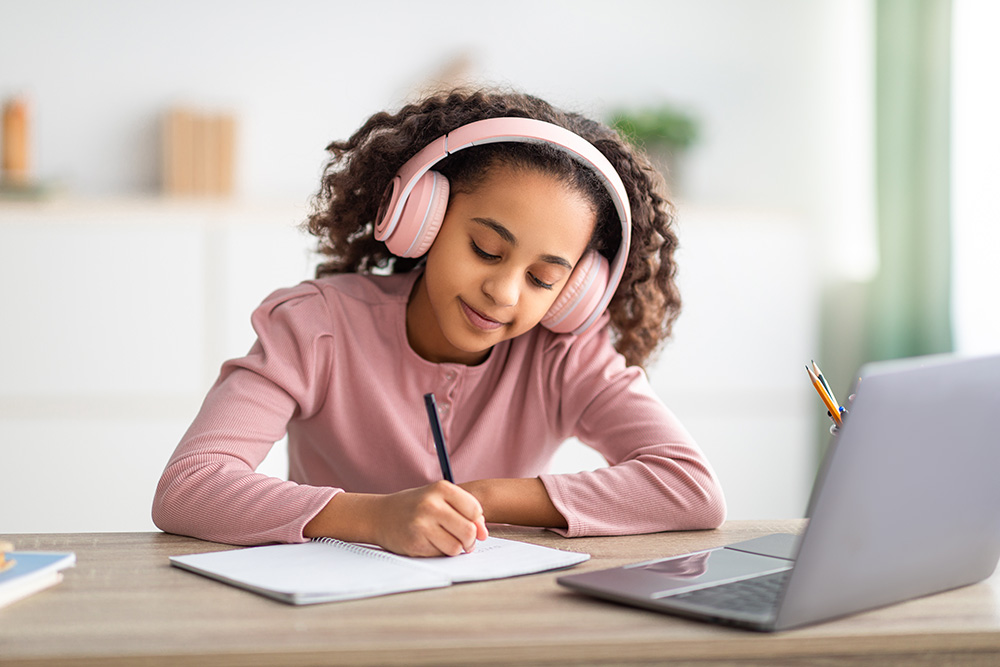
They say there are basically four learning styles: visual, auditory, read/write, and kinesthetic. In the auditory learning style, a person learns best by listening. This means the person often prefers to listen to a lecture as opposed to reading a chapter in a book. This could also mean the person prefers listening to an audiobook as opposed to reading the print book. The auditory learner also often learns best from group discussions and presentations.
What is a print disability?
Often when people have a print disability, they must rely on auditory learning to obtain information. We often think of people who are blind or have low vision as having a print disability. For such individuals the printed page is a barrier to learning. However, print disability also includes individuals who are dyslexic or who have a physical disability that prevents them from holding a book. Print disability also includes individuals who can read print but have difficulty comprehending what they read. In all these cases, often listening to information is preferred over looking at printed text.

The Print Barrier
Print books still sell more than e-books. 75% of books that are sold are physical print books. Only 25% of books sold are e-books or audiobooks. If print is a barrier for you, how do you access all that untapped potential entertainment and information. The answer would appear to be that you should transform the print books into audiobooks.
In an earlier blogpost, read here, I listed a few applications that can transform a print book into an audio experience. The two major apps were “Seeing AI” from Microsoft and “Envision AI.” Both apps are free. You simply point your camera on your phone at the printed page and the page will be read aloud to you.
Additionally, there are apps on your iPhone or iPad they can transform an e-book into an audiobook. One of the most accessible Apps is built into the iPadOS or the iPhone iOS. This feature is called Spoken Content. When Spoken Content is turned on, it will read any text that is on the screen of your iPad to you with your preferred text-to-speech voice.
What is text-to-speech?
Built-in into the iPad and iPhone is text-to-speech. Text-to-speech can read any print that is on your iPad screen out loud to you. Text-to-speech voices used to be quite mechanical and artificial sounding. These text-to-speech voices have been greatly improved with artificial intelligence built into them.
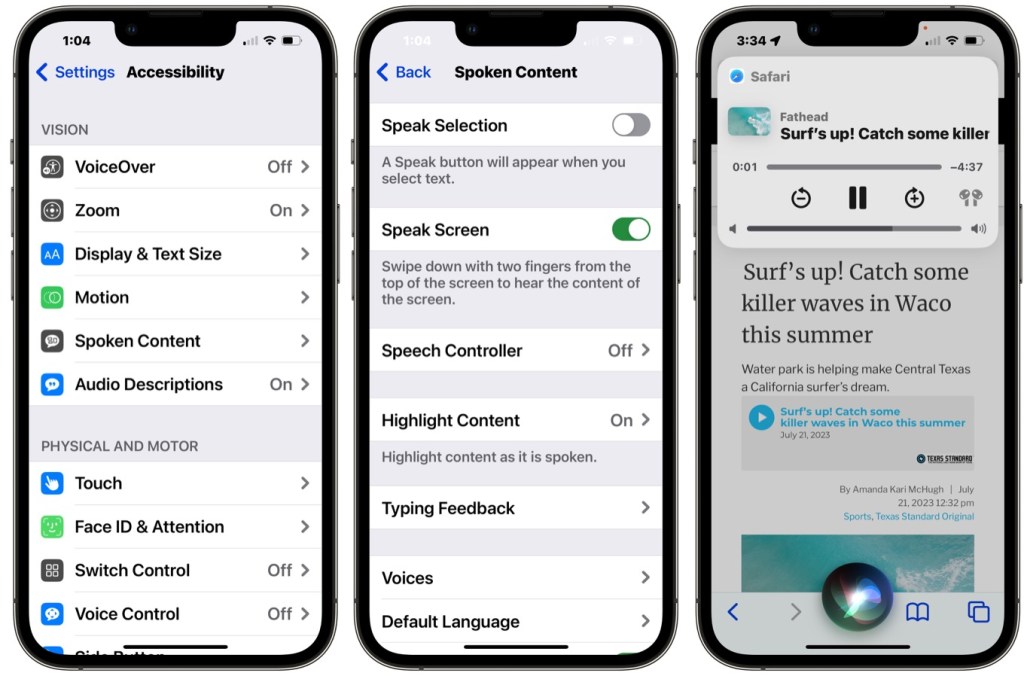
How do I access my text-to-speech voices? One of the best ways to get your iPad or iPhone to read to you is through an accessibility feature called “Spoken Content.” Spoken Content can be turned on by going to settings > accessibility > Spoken Content. As soon as you turn the toggle switch, several files, which Voice Control needs, will start to download. This only happens during the initial set up. You can also turn on the speech content controller. The Speech Controller allows you to turn on spoken Content when you want to read something aloud.
When on a screen that has print, you tap the Speech Controller to begin the read aloud experience.

Choosing a text-to-speech voice
When you are in the Spoken Content screen you will see “Voices.” Tap Voices, this will allow you to choose your preferred language and a preferred text-to-speech voice. When you choose English as your preferred language there are several dialects available. These include US English, British English, Irish English, and English from India. You can choose a voice that has the accent that you would like to hear.
For US English, I prefer the Ava and Nathan voices. New to iOS 17, when you select a preferred Voice, you can set the timber (pitch) of the voice and the length of the pause after a period. To set these parameters, when you choose your voice, tap on the little circle that appears at the right of the voice name. I prefer my voices to have a lower timber (Pitch). I also prefer a longer pause after the period of the sentence.
Listen to your e-books
If you have purchased an e-book from one of the online retailers — like Amazon Kindle, Barnes & Noble, or Apple books –, you can have Spoken Content read the book to you. In this manner, you are changing the book into an audiobook. Make sure that the book you are reading is in page mode and not scroll mode. Spoken Content will not read when the book is in scroll mode. Spoken Content will automatically turn the pages for you. The Amazon Kindle app will keep track of the page you are on as you read. So, the next time you open the book you will be on the correct page.
Narrator App
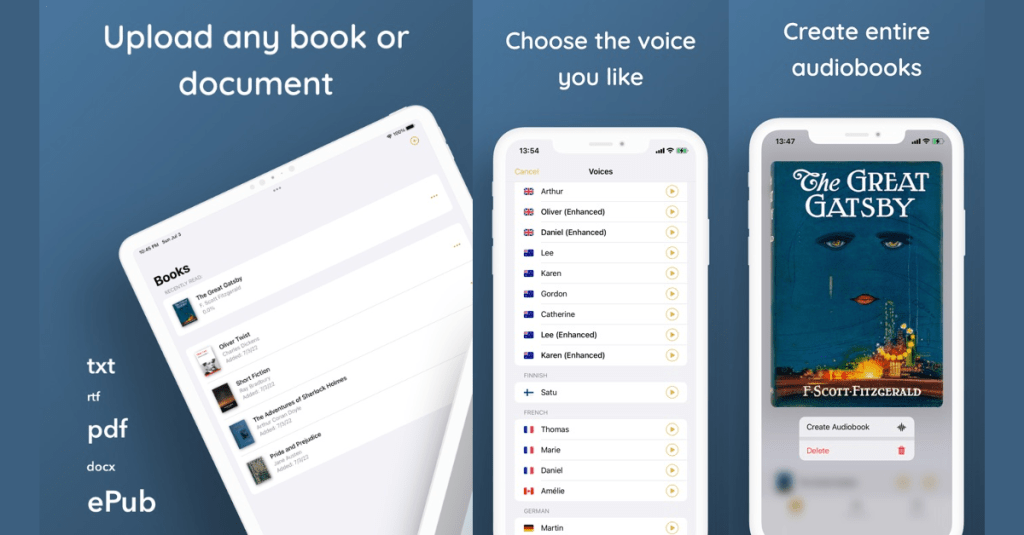
The Narrator app can turns an e-book into an audiobook file. The e-book has to be free of digital rights management. One of the ways I get e-books with no digital rights management is to use Bookshare.org. I wrote a blogpost on that too, read it here. When you download an e-book from Bookshare.org, you can choose for the book to be in Microsoft Word format. This file has no digital rights management. You can then open this file in the Narrator application.
Once in the Narrator application, you can choose one of the Apple text-to-speech voices. When choosing a voice you can set the timber (pitch) of the voice. I also set the speed of voice to be at 50%. The 50% makes for a smooth reading of the e-book. You then select to create an audiobook file. Transforming your e-book into an audiobook takes only about one or two minutes.
I then place the audio file into the Voice Dream Reader app. When the file is opened in Voice Dream Reader you can adjust the speed at which the file plays thus adjusting the speed of voice. You can also easily set bookmarks within the audiobook file in order to remember your most important points.
In Conclusion
In conclusion you can listen to any e-book on your iPad or iPhone using Spoken Content. In this manner, every new book that you have can be listen to as an audiobook. The audiobook version of your e-book is very portable. This portability allows you to listen to your e-book during any part of the day when you have a spare moment.
 James Nuttall, PhD