

Typing either on the iPhone or iPad with the on-screen keyboard is difficult. I showed two friends how to use dictation (voice typing) on their iPhones. They now use dictation to create all of their text messages. Besides text messages, voice typing easily allows you to create emails, blog posts, or even an entire book by voice. I, generally, use dictation to successfully do all of these things.
If you have tried using dictation on the iPhone or iPad previously and have been discouraged, I highly recommend you investigate dictation with iOS and iPadOS 17. You will be very pleased with the improvements within the new operating system.
The new dictation module for iOS and iPadOS 17 is called Transformer Language Module. This new transformer module is based on the newer artificial intelligence modules, like ChatGPT. While dictating, I find this new module to be 99% accurate in transcribing your voice into text.
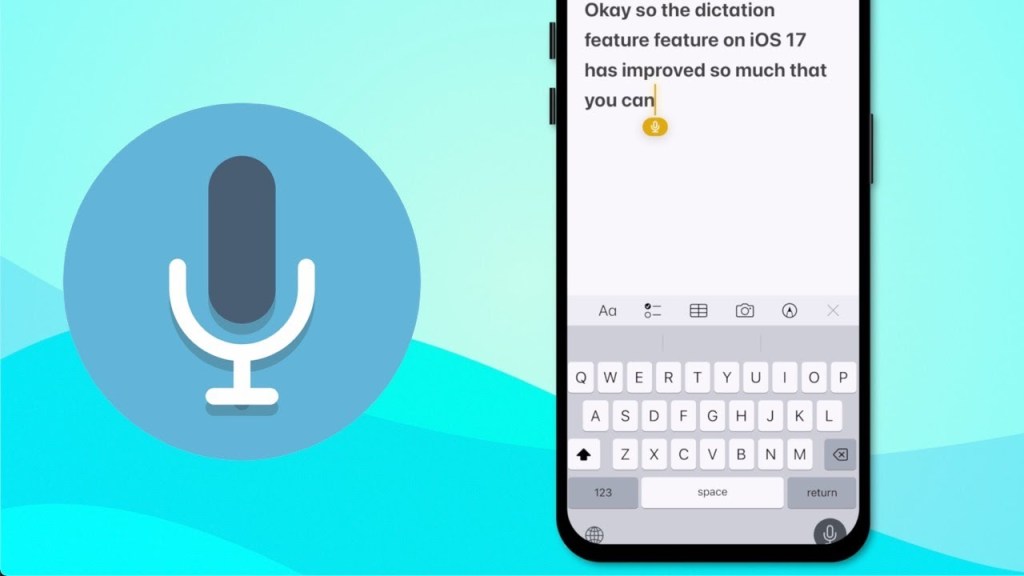
There are basically two ways to dictate on the iPad or iPhone. One is what used to be called “Siri dictation.” Now, I call this “keyboard dictation.” With keyboard dictation turned on, a symbol of a microphone appears on the keyboard. When you press this microphone symbol, you can voice type into any text field.
The second option is to turn on Voice Control. This is an accessibility feature built into the iPad and iPhone operating system. Voice Control allows you to control your iPhone or your iPad totally by voice. Voice Control is found in settings under accessibility.
With Voice Control turned on, voice typing is automatically turned on. While in a text field, whatever you say will be turned into typed text. I explain the ins and outs of Voice Control in my book Successfully Control Your iPad with Your Voice.
 James Nuttall, PhD