
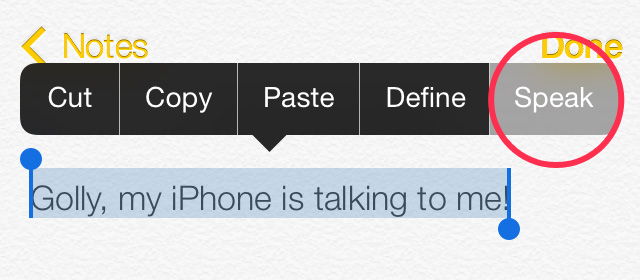
Whether a webpage, a text message, an email, or an e-book, your iPhone or iPad can read it aloud to you. In iOS and iPadOS there are two systems that can read aloud to you. The first is VoiceOver, a screen reader. The second is Spoken Content. Both of these systems read aloud for visually impaired users. However, anyone can use either of these read aloud systems. Both of these systems can be turned on in the Settings app under Accessibility. In this short section, I will focus on Spoken Content.
Spoken Content
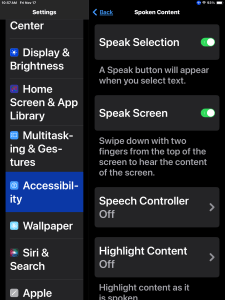
When Spoken Content is turned on, you can control how and where your iPad reads to you. By opening the Settings app and going to Accessibility, you can select Spoken Content. Under Spoken Content there are two toggle switches “Speak Selection” and “Speak Screen.”
Speak Selection:
When in an app, you can select text. You do this by pressing with your finger on part of the text and dragging over the text that you wish to highlight. Normally, this process selects the you’re you want to copy and paste. With Speak Selection turned on, there is the options to “Speak” the highlighted text when the menu comes up.
Speak Screen:
With Speak Screen turned on, when you do a two finger swipe down from the top of your screen, the content on the screen will be spoken aloud. This will read the entire screen. With the two finger swipe down, the “Speech Controller” will appear.
Speech Controller
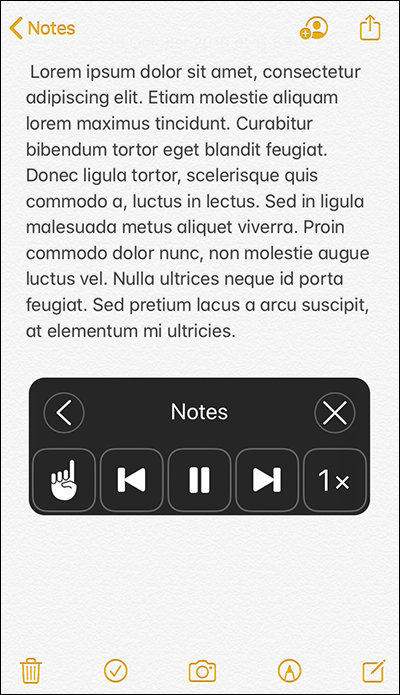
When the Speech Controller is showing, you can press the play and pause button to start and stop the reading. You can adjust the speed at which the voice is reading. You can also skip forward or back by a paragraph at a time. After you start the voice speaking, the Speech Control goes into hibernation mode. This will show up on the side of your screen as an arrow. To activate the Speech Controller, you simply tap on the arrow.
There are two reading options with the Speech Controller. One is to speak the entire screen. Speaking the entire screen is activated by a two finger swipe down from the top of the screen or by pressing the play button. The other is to speak when you tap on the screen. In order to activate the latter, on the Speech Controller, there is the image of a hand with a pointing finger. Tap on the pointing finger and tap on the screen. Reading will begin where you tap.
Reading Voice And Reading Speed
Also while in Accessibility and Spoken Content you can select a text-to-speech (computer) voice which does the reading. Tap on Voices and choose your preferred language. Most languages come with at least a male or female voice. English comes with 22 voices with male and female options. The two voices I prefer are Ava (premium) and Nathan (enhanced). I believe these two voices give the best naturally sounding voices.
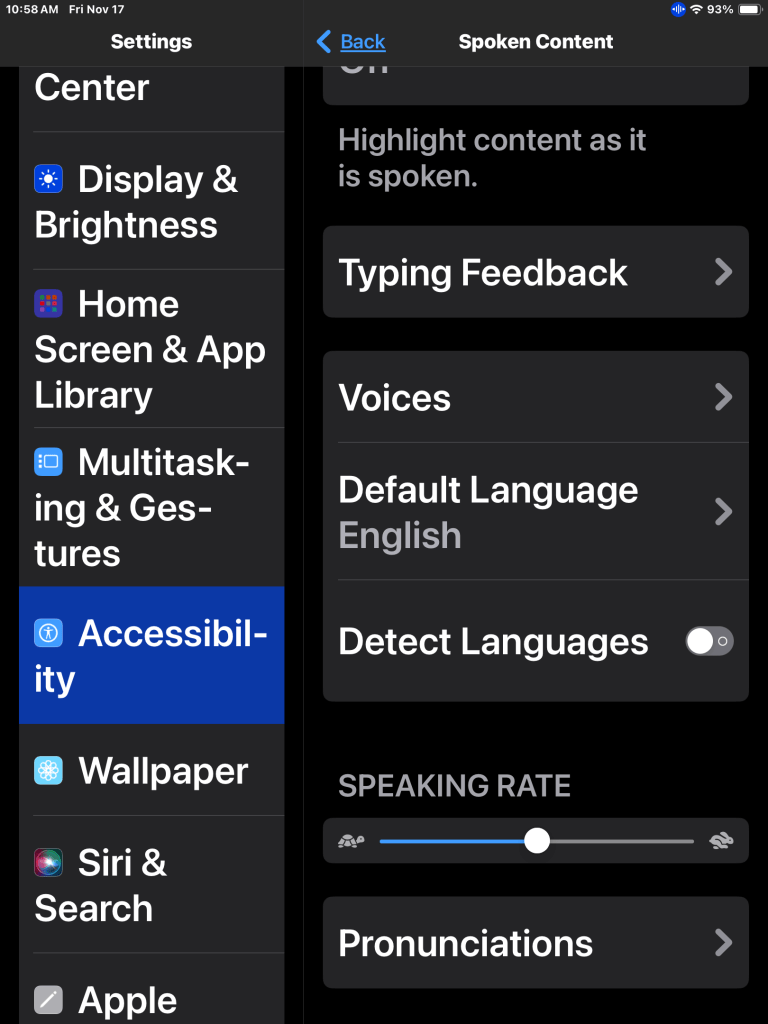
To adjust the Speaking Rate of the text-to-speech voice, within Spoken Content there is an adjustable slider. When you move the Speaking Rate slider the text-to-speech voice will give you a sample of its rate of speech. With the Ava and Nathan voices I read a good many webpages and e-books. I frequently adjust the Speaking Rate depending on the complexity of the text being read. In this way I maximize good comprehension.
 James Nuttall, PhD